
Our setup guide to get started

A guide to getting started with your tracking tag and how best to use your pet profile.

Setup Steps...

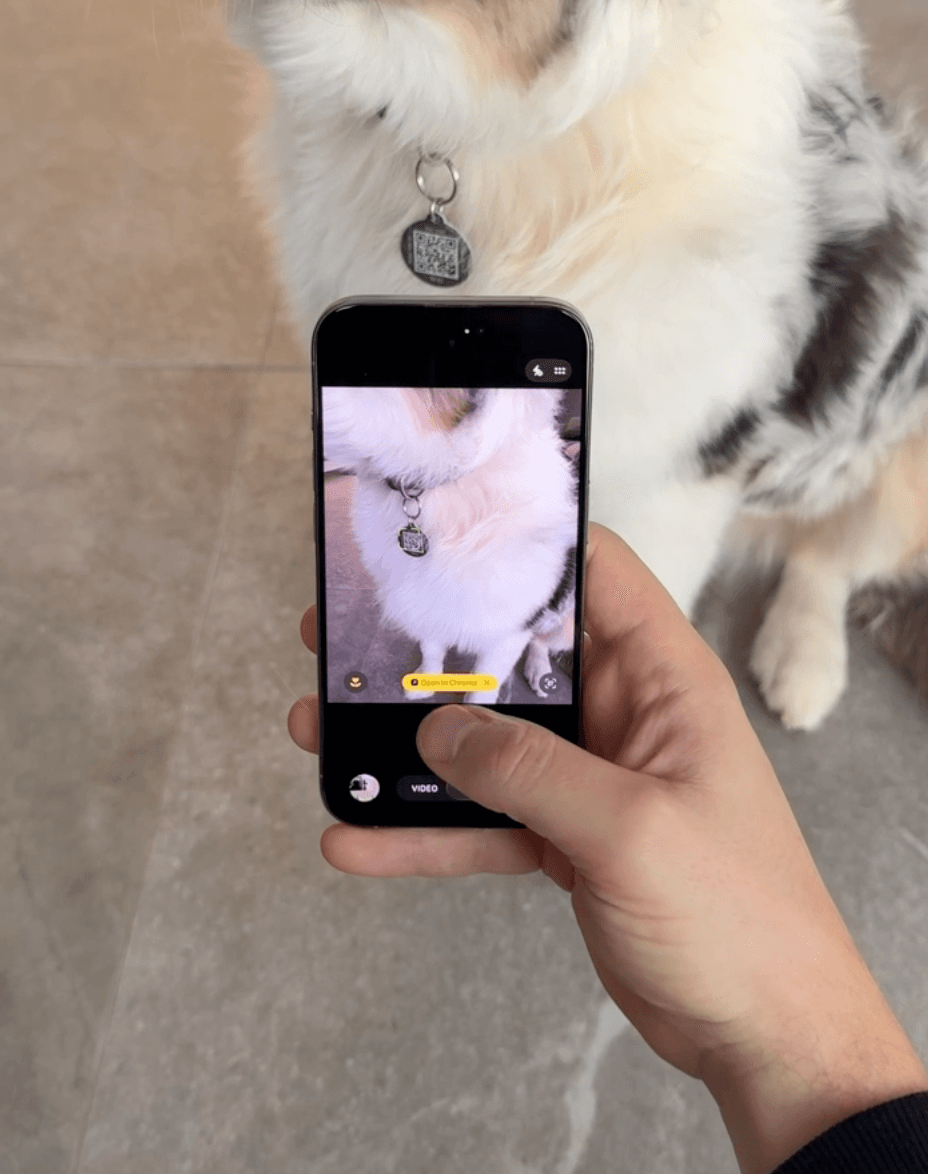
Please note, you do not need to download an app, our software is web based. Get started by scanning the tag with your phone camera.
Load video:

1. Scan Your Tag

Scan: Open the camera app on your smartphone. Aim it at the QR code. Give it a moment to focus. A link will pop up once the QR code is detected. Simply tap on it!

Note: If your smartphone is not scanning the code, please download the Apple or Android application on your phone.

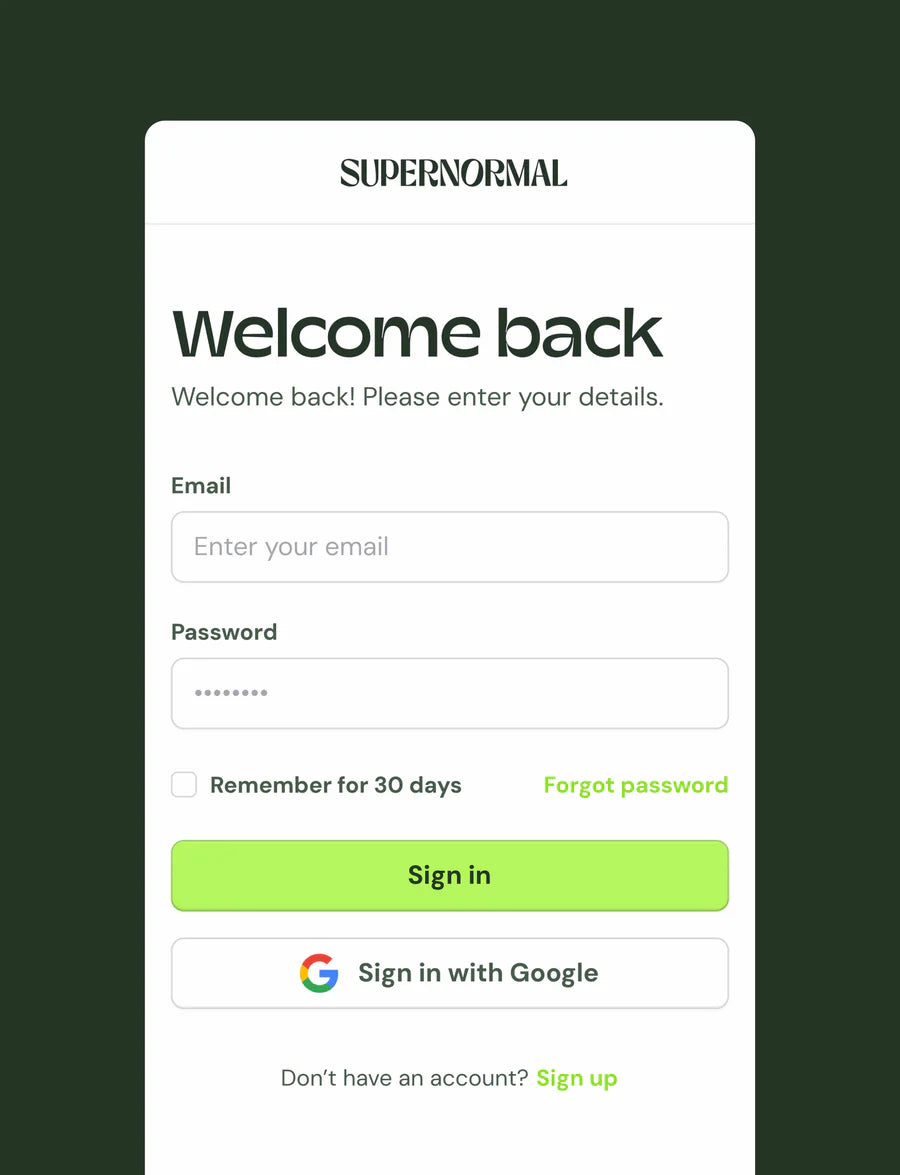
2. Login or Create Account

Create an Account: Follow the prompts to create a new account if you don’t have one yet.

Already with us? Log In: Enter your credentials to access your account.
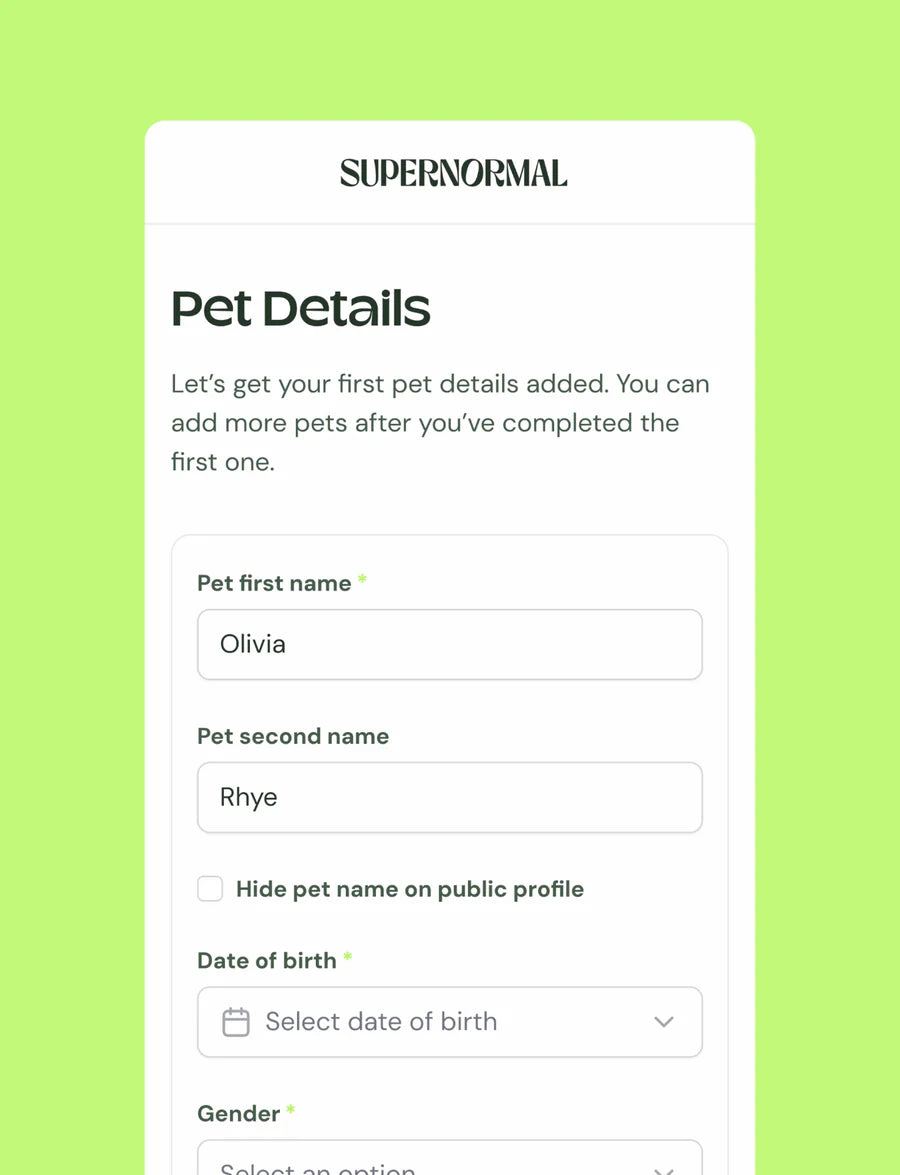
3. Complete Onboarding

Enter Details: You'll find a series of fields to fill out. Provide all the necessary details about your pet and yourself as the owner. Double check all the information entered is correct and up-to-date.
4. Complete

Once onboarding is complete, you're ready to go. You can add more pets in your dashboard, or change any information you may want.

Dashboard Setup

How do I link a QR tag?

You don't need to download any applications. Just simple scan the tag, login, or create an account, finish onboarding, then select the pet you'd like to assign the tag to.

If your mobile camera is not scanning the tag, you may need to download a QR code scanner from the Apple / Google Play Store.

How do I add a new pet?

Desktop: Click the pet icon and name in the bottom left corner when you're logged into the pet portal. Then click add new pet.

Mobile: Click the menu button at the top of the screen, then click the pet icon and name in the bottom left corner when you're logged into the pet portal. Then click add new pet.

How do I update my pet's details?

Log in to the pet portal and navigate to the Profile Page. Here you can select Pet Details and edit any information you need.

How do I add contacts?

Log in to the pet portal and navigate to the Profile Page. Here you can select Contacts and edit any information you need.

How do I add my vet details?

Log in to the pet portal and navigate to the Profile Page. Here you can select Vets and edit any information you need.

How do I add reminders?

Log in to the pet portal and navigate to the Profile Page. Here you can select Reminders and edit any information you need.

How do I update my pet profile branding?

Log in to the pet portal and navigate to the Profile Page. Here you can select Design and edit the design of your page.

Can I hide details from my pet page?

Yes absolutely! Log in to the pet portal and navigate to the Profile Page. Here you can select Contacts and edit any information you need. Here you can select what is, and is not shown on your profile page.

Lost Pet

What happens when I mark my pet as lost?

First, your pet profile page will be updated instantly to show your pet as missing. We will also notify local vets and kennels in the area. We are currently working on a feature that will also update people in your area who use Supernormal. They can either help with the search or keep an eye out!

What happens when my pet's tag is scanned?

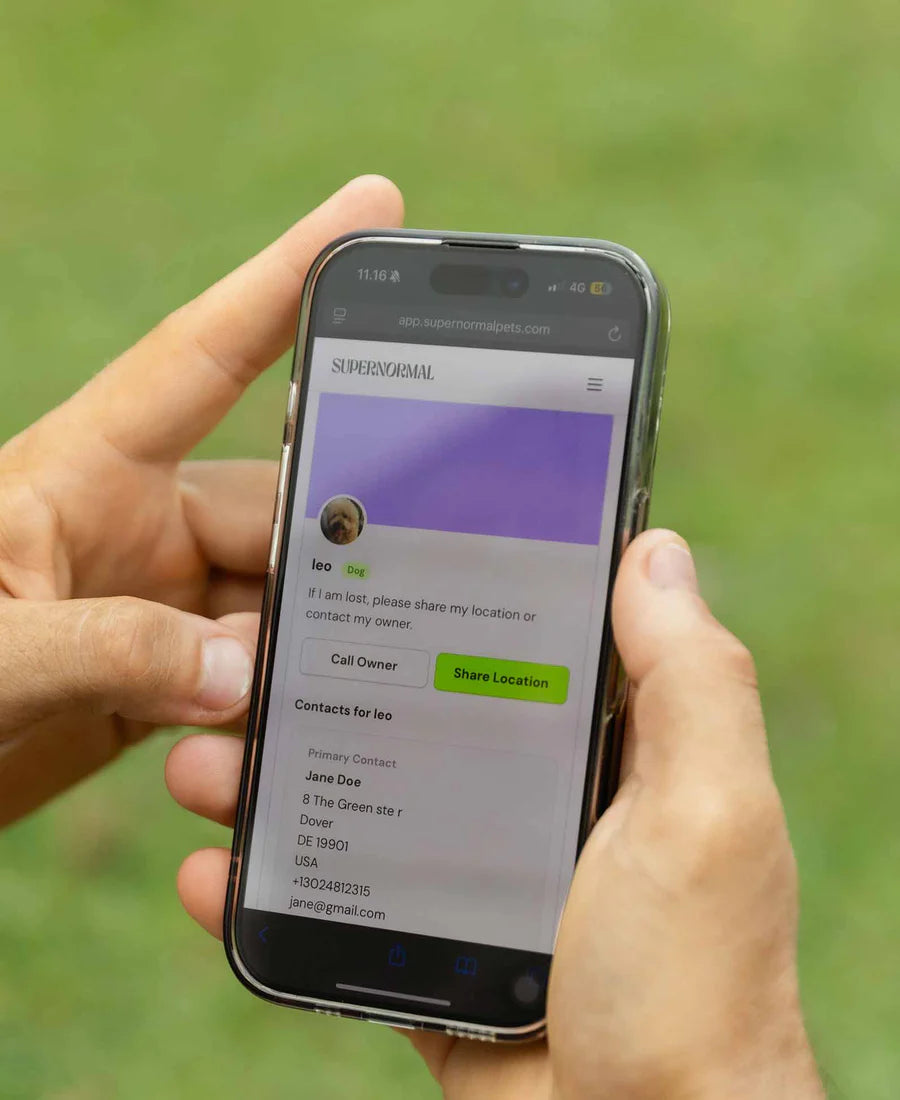
As long as your tag is linked to a pet, it will link to a pet profile page, with the ability to send a GPS location to the owner or call them. It also displays any information you want to display on it.

How will I receive notifications when my pet's tag is scanned?

This will come through your messaging app system on your phone.

What happens if my details are out of date?

You can easily update these on your profile and add as many details as you want. If you wish to add 10 emergency contacts, you can.

4.9/5

Rated by our users

150K+

Registered Pets

98.7%

Pets successfully found

Ready to order your tag?

Get started by ordering your free pet tag today.

Order Tag
5
reviews
See all reviews